


Menu QR code: switch lunch and dinner menus automatically
A table stand has room for one QR code, but your restaurant has more than one menu. With a time rule, the same printed code shows the breakfast menu in the morning, the lunch menu at midday and the dinner menu in the evening. You print once.
Bronze plan: free for 14 days, then €14.90/month incl. VAT. Payment method required. Renews automatically, cancel anytime.
On this page
One menu does not fit the whole day
Example: café-restaurant. In the morning there is breakfast, at midday a lunch special and in the evening the full menu. But a table stand only has room for one QR code. With a fixed link you are left with two poor options: one long page with all three menus where guests have to search, or stands that you swap several times a day.
With a dynamic QR code and a time rule you need neither. The code on the table always stays the same. Which menu appears behind it depends on the time: someone who scans at 8 am sees breakfast, at 1 pm the lunch special, at 7 pm the dinner menu.
Video: one code, three menus
In 39 seconds you see how one printed code leads to different menus at different times.
How the time rule works
In QRlogic you attach Smart Rules to a dynamic code. These are rules that are checked from top to bottom when someone scans. The first rule that matches decides where the guest is sent. A rule of type Time checks the time of day: you set a time zone and a time range, and the rule applies exactly in that range. Start and end time are included, so a rule that ends at 10:59 still applies at 10:59.
Five steps to a menu by time of day
Have three addresses ready
Create a separate page on the internet for breakfast, lunch and dinner, for example on your website, and note the three web addresses. A rule always redirects to a web address. Open each menu once on a phone and check that it is easy to read.
Create a dynamic code
Create a dynamic QR code in QRlogic and open its Smart Rules.
Add time rules
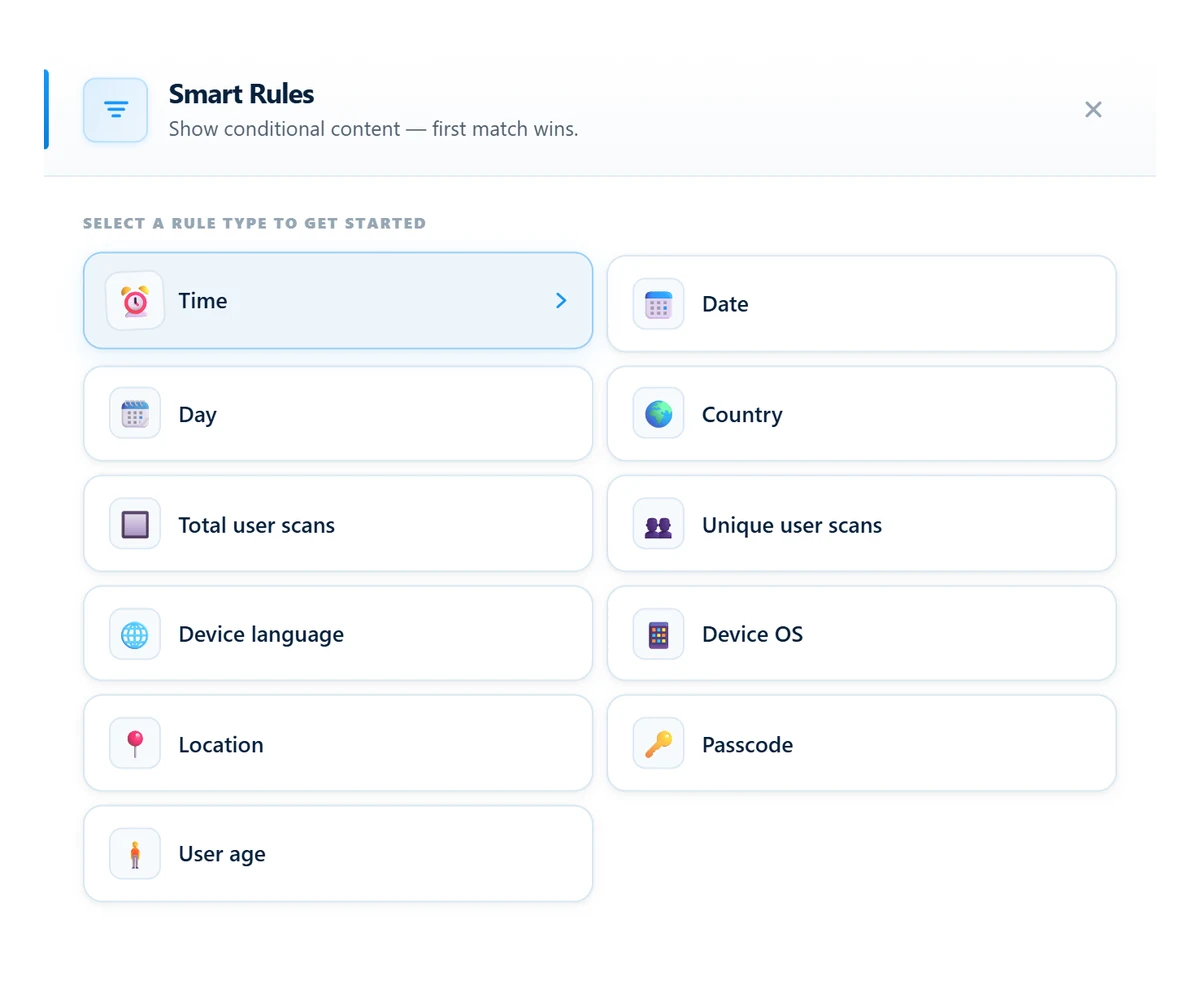
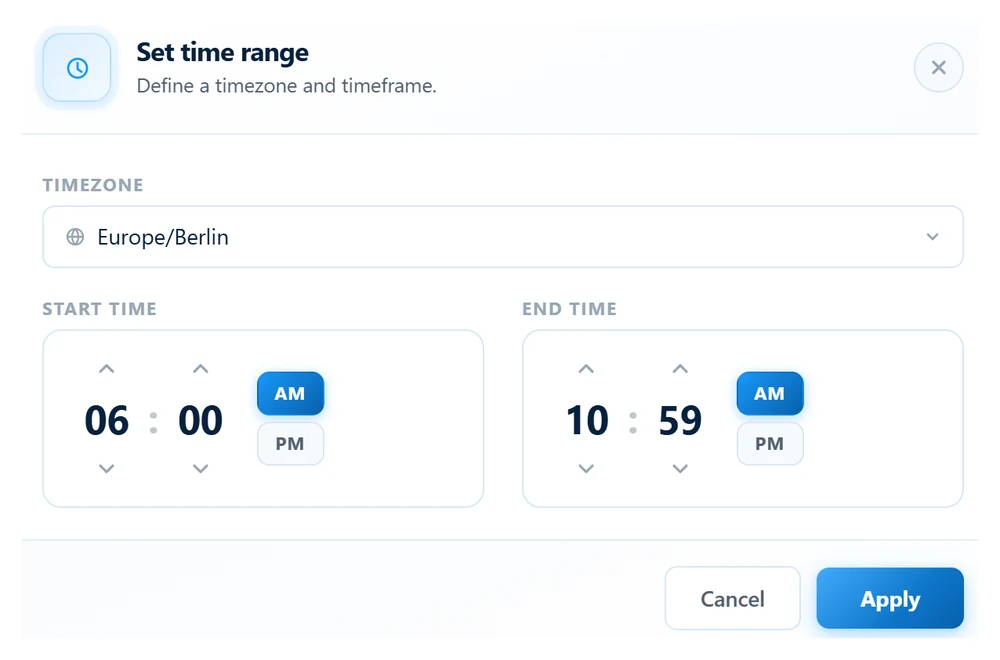
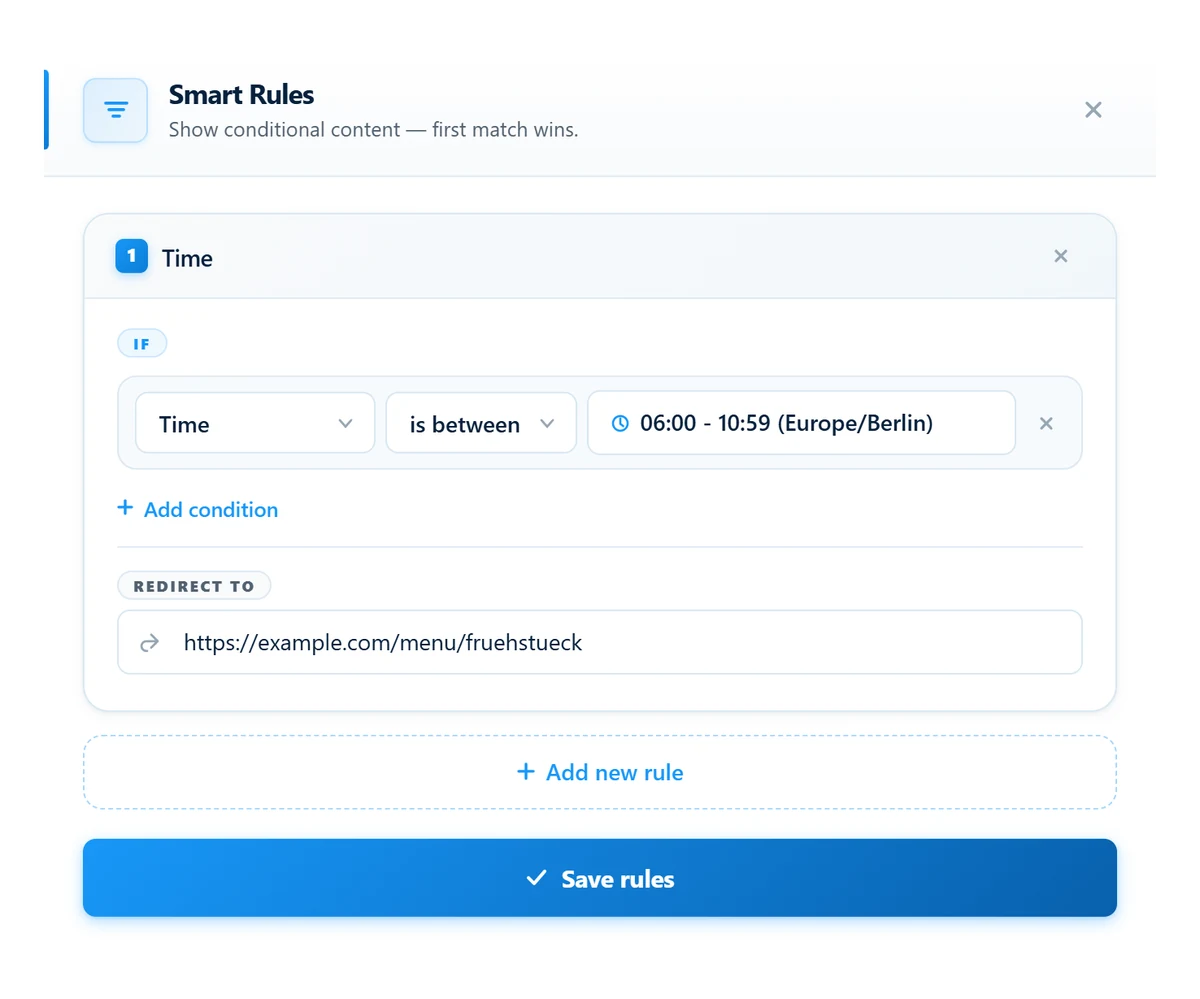
Choose the rule type Time, set the time zone of your restaurant, choose is between and set a start and end time. Under Redirect to, enter the address of the matching menu. Create one rule per menu. The times are entered with AM and PM: you choose 5:00 pm as 05:00 PM.
Cover all times
Check that your rules cover the whole day, including the time after the kitchen closes. For a time with no matching rule, there is no fallback address.
Test and print
To test, change one rule so that it includes the current time, save, and scan the code with your phone. Then set the times back and save again. Only then do the stands go to print.
What it looks like in QRlogic
The images show the steps from the guide. Click an image to open it in full size.
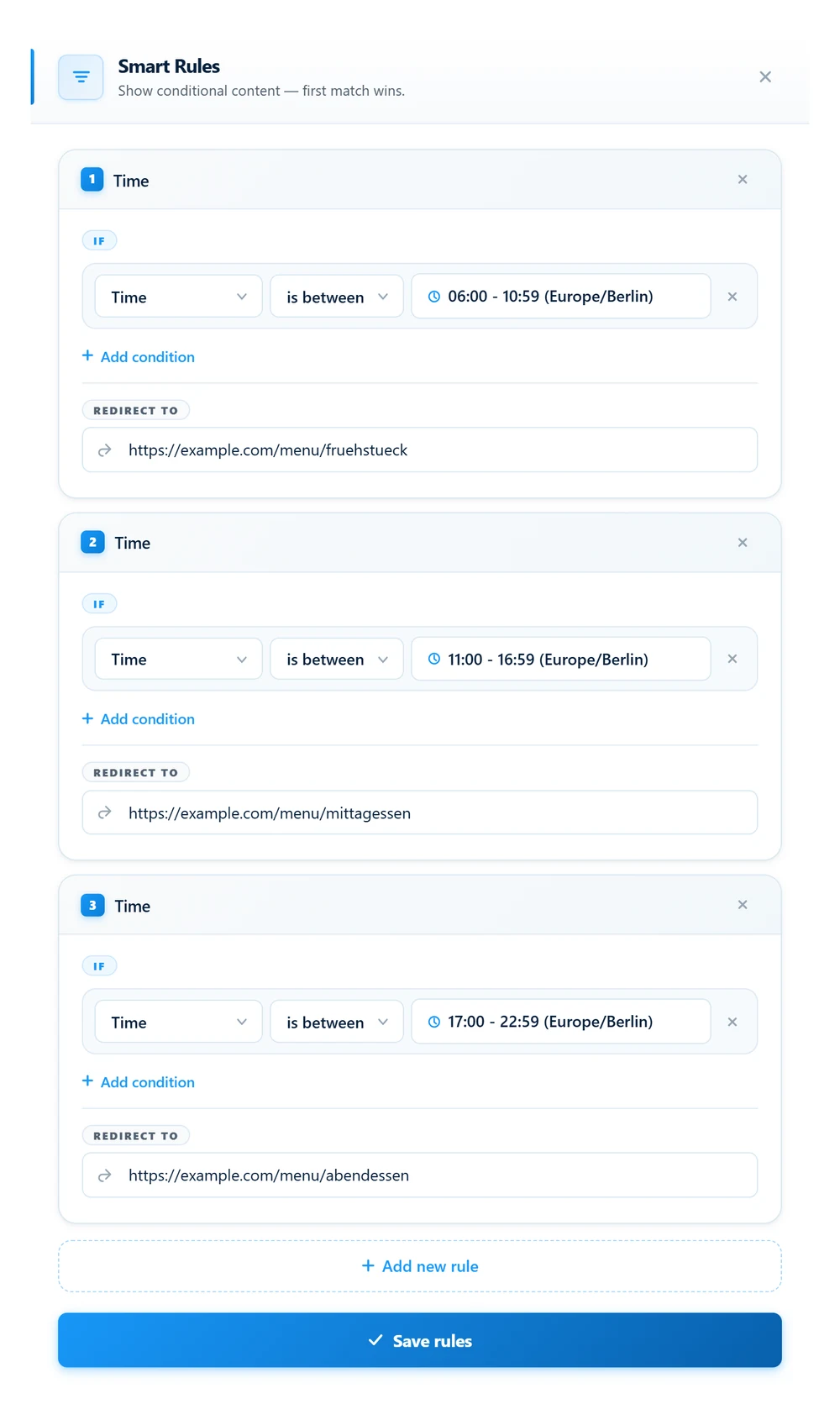
Example: three rules for a café-restaurant
This is how the rules could look in the example. The time ranges do not overlap, so the order does not matter here.
| Rule | Condition in QRlogic | Guest sees |
|---|---|---|
| Rule 1 | Time is between 06:00 and 10:59 | Breakfast menu |
| Rule 2 | Time is between 11:00 and 16:59 | Lunch menu |
| Rule 3 | Time is between 17:00 and 22:59 | Dinner menu |
Between 23:00 and 05:59, no rule matches in this example. If you also want to show something then, extend the last rule to 05:59. QRlogic supports time ranges that go past midnight.
What to check on the table stand
- Light: Restaurants are often dimly lit. A dark code on a light background and a matte surface scan most reliably.
- Phone view: Open each of the three menus on a phone. Short, clear pages with easy-to-read text are better than long pages where people keep zooming or scrolling.
- Weak reception: In cellars and old buildings, reception is often poor. Keep the pages light, with few and small images, so they load quickly.
- Label: Write “Scan for the menu” next to the code. You do not have to mention the time of day.
- Time zone: In every rule, choose the time zone of your restaurant. The calculation uses this time zone, not the guest’s phone.
- Daylight saving time: The time zone handles the switch by itself. You do not need to change the rules.
What else you can do with rules
- Weekend different from weekdays: Conditions can be combined in one rule, for example Day and Time for a brunch menu on Saturday and Sunday.
- Holiday menu: A rule of type Date shows the holiday menu from 24 to 26 December. Put it above the time-of-day rules, because the first matching rule wins.
- Guest language: A rule of type Device language can show the English menu to guests whose phone is set to English.
- Scan statistics: You see how often the code was scanned, when, from where and on which device. The statistics use shortened IP addresses, and the servers are in Germany. More in the guide to the GDPR-compliant QR code generator.
Frequently asked questions
Can I show several menus by time of day with one QR code?
Yes, with a dynamic code and Smart Rules. You create a rule of type Time for each menu, with a time range and an address. When someone scans, QRlogic checks the rules from top to bottom, and the first match decides which menu appears.
Which time applies when guests scan from other countries?
The time zone you set in the rule applies, so the one of your restaurant. A guest in another time zone sees the menu that is currently valid for you. The clock on their phone does not matter.
What do guests see when no rule matches the time?
A notice page with the text “Nothing to show right now”. There is no fallback address. So cover all times when someone could scan.
What does it cost?
Smart Rules are included in every plan. You can try the Bronze plan free for 14 days, then it costs €14.90 per month incl. VAT. A payment method is required, the subscription renews automatically and you can cancel anytime. Bronze includes 5 dynamic codes, and scans are unlimited in every plan. Current prices are on the pricing page.
Does the printed stand keep working if I cancel my subscription?
No. Without an active subscription or trial, a dynamic code no longer redirects, and the stand only shows a message that the content is not available. If you only have a single menu that never changes, a static code from the free QR code generator is enough.
Try it with your own QR code
Create a dynamic QR code and change its target whenever you need to. Or create a static code for free, without signing up.
Bronze plan: free for 14 days, then €14.90/month incl. VAT. Payment method required. Renews automatically, cancel anytime.