


QR code with a scan limit: the offer ends after 100 scans
An offer should only count for the first 100 visitors, but the code is already printed. With a scan rule, a dynamic QR code counts along and automatically shows a different page from the 101st scan.
Bronze plan: free for 14 days, then €14.90/month incl. VAT. Payment method required. Renews automatically, cancel anytime.
On this page
Why a fixed link is not enough for limited offers
You print posters or flyers for an offer, for example a voucher for the first 100 visitors. But the poster stays up even when the hundredth voucher is long gone. Whoever scans afterwards lands on an offer that no longer exists and is annoyed. With a static QR code, all you can do is take the poster down or reprint.
A code that counts along
With a dynamic QR code, only a single code is on the poster. A Smart Rule of type Total user scans compares the number of scans so far with your limit at every scan and decides which page the guest sees. After printing, you do not have to change anything.
| Scan number | Guest sees |
|---|---|
| Scans 1 to 100 | Offer with voucher (example.com/offer) |
| From scan 101 | Notice “Offer ended” (example.com/offer-ended) |
In the example, the offer applies to the first 100 scans. The addresses are examples. You enter the addresses of your own pages.
Five steps to a scan limit
Prepare both pages
Create one page for the offer (voucher, deal) and one for the time afterwards. Both must be reachable through a web address, for example on your own website. The page for afterwards only needs a few words and a way out, for example a link to your regular offer.
Create a dynamic code
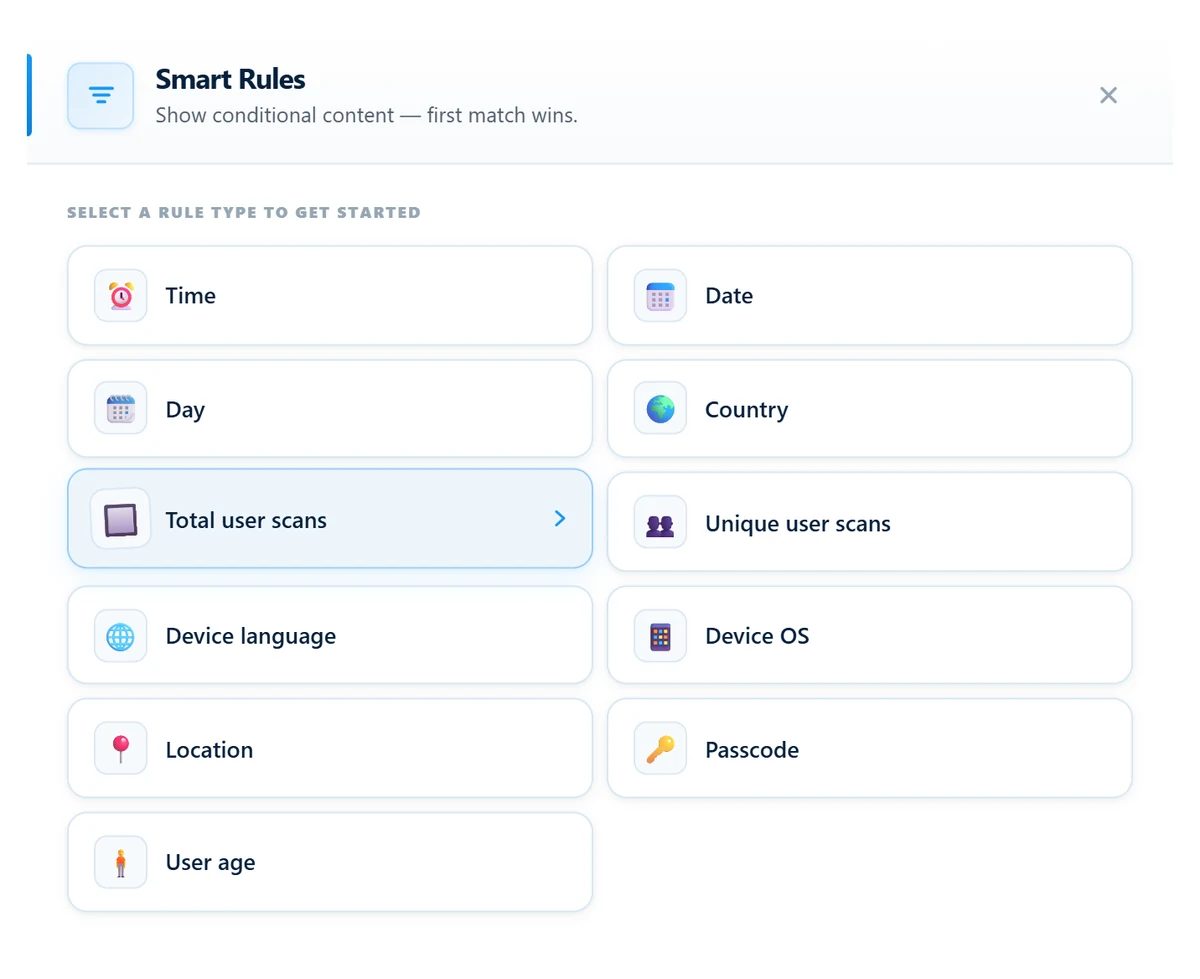
Create a dynamic QR code in QRlogic and open its Smart Rules.
First rule: the first 100 scans
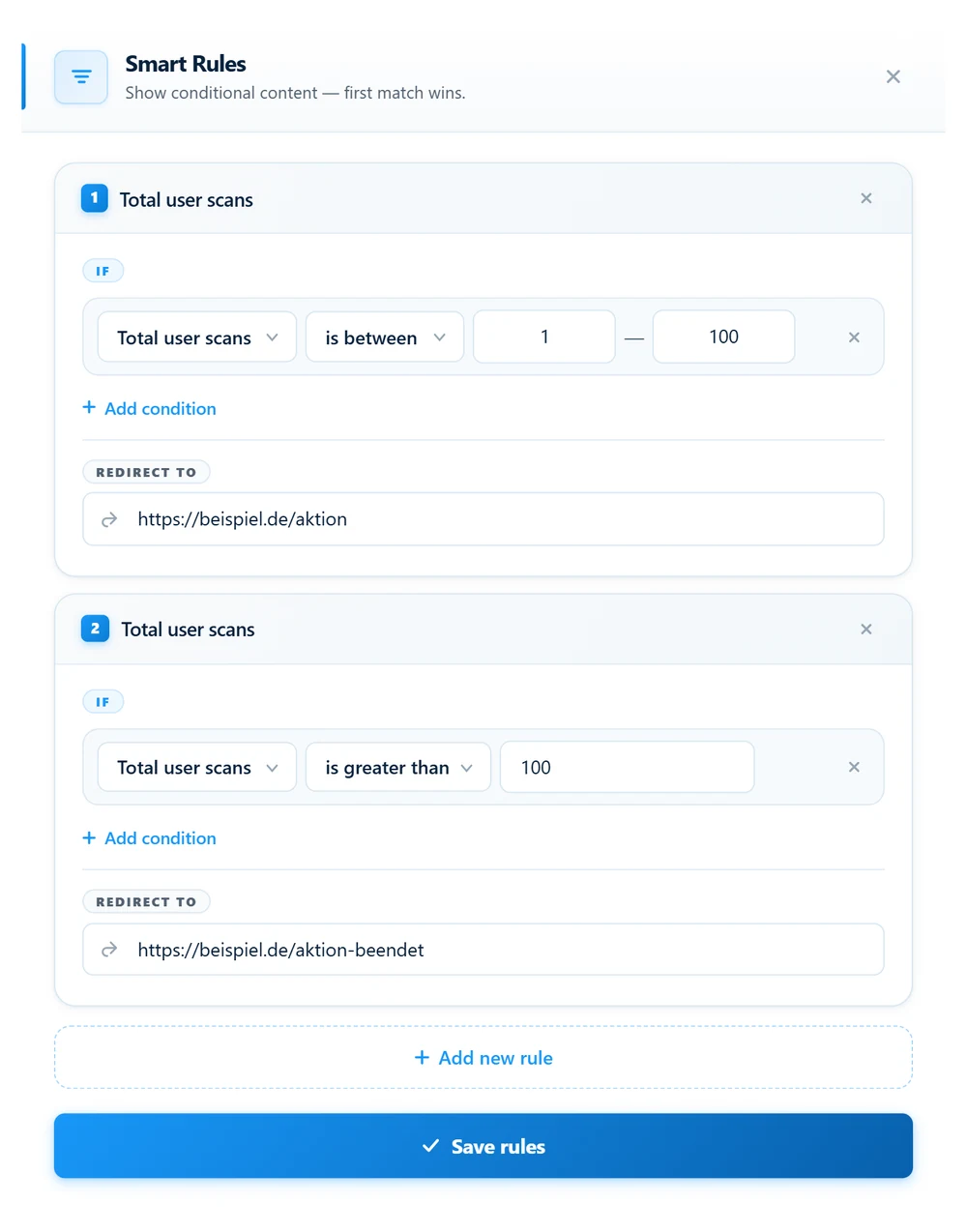
Choose the rule type Total user scans, then is between, enter 1 under Min and 100 under Max. Under Redirect to, enter the address of the offer page.
Second rule: all scans after that
Add another rule: Total user scans, is greater than, value 100. The target is the address of the “Offer ended” page.
Save and check with a test code
Save with Save rules. Before printing, test with a test code of your own, as described further down. Otherwise your test scans count in your real code.
What it looks like in QRlogic
The images show the steps from the guide. The numbers and addresses in them are examples. Click an image to open it in full size.
What to check about the count
It is best to create a new code for a new campaign, so the counter starts at zero. If you want to raise the limit later, change the numbers in both rules and save. The printed code stays the same.
What to check on the poster and the flyer
- “Offer ended” page with a way out: Whoever scans after the limit is often still standing in front of the poster. Say briefly that the offer is over and show another way, for example your regular offer.
- Neutral wording: The print does not change, the page behind it does. So write for example “See the offer” and not “Get your free voucher”, otherwise the text no longer fits after the limit.
- The same code everywhere: Use the same code for the poster, flyer and stand. Then all scans count together, and the limit applies to the whole campaign.
- Size and contrast: As a rule of thumb at least 2 × 2 cm, and clearly larger on the poster. A dark code on a light background scans most reliably.
- Test before printing: Create a test code with the same two rules, but with a small limit: is between 1 to 3 and is greater than 3. Scan it four times. The first three scans show the offer, the fourth the “Offer ended” page. Then create the real code with the real limit.
What else you can do with rules
- More than two levels: For example early-bird offer, standard offer and sold out. You create three rules, each without a gap: “is between 1 to 100”, “is between 101 to 500” and “is greater than 500”.
- Combine with the date: Conditions can be combined in one rule, and then all of them must match. So you can combine a scan limit with a time period. How the date works is explained in the event with the program before and photos after. Because the first matching rule applies, the special cases go to the top.
- Unique user scans: This rule counts only one scan per day and shortened IP address. The same visitor does not count several times on the same day, but counts again the next day. Several people on the same network may count as one.
- Scan statistics: You see how often the code was scanned, when and on which device. That shows you how fast the limit fills up. The statistics use shortened IP addresses, and the servers are in Germany. More in the guide to the GDPR-compliant QR code generator.
Frequently asked questions
Does the guest have to install an app?
No. The camera of modern phones recognizes QR codes by itself.
How exact is the limit?
The counter is not an exact cash-register count. If very many people scan in the same second, a few scans may still see the offer beyond the limit. For campaigns where every single voucher matters, count the redemptions yourself as well.
Do my own test scans count?
Yes. Every scan of the code counts. So test with a separate test code and only create the real code afterwards.
What do guests see after the limit?
The page you enter in the second rule, for example “Offer ended”. If there is no second rule, guests only see a notice page that says “Nothing to show right now”. There is no default target, so always create the second rule.
Can I change the limit later?
Yes. You change the numbers in the two rules and save with Save rules. The printed code stays the same. If you raise the limit, scans above the old limit see the offer again.
Can I combine the limit with a date?
Yes. Several conditions can be combined in one rule, and then all of them must match. For example, an offer can apply to the first 100 scans, but only until a certain day.
What does it cost?
Dynamic codes come with the subscription plans, and Smart Rules are included in every plan. You can try the Bronze plan free for 14 days, then it costs €14.90 per month incl. VAT. A payment method is required, the subscription renews automatically and you can cancel anytime. Bronze includes 5 dynamic codes, and scans are unlimited in every plan. You can create static codes for free and without signing up, but they cannot be changed after printing. Current prices are on the pricing page.
Does the code keep working if I cancel my subscription?
No. Without an active subscription or trial, a dynamic code no longer redirects. The guest then only sees a message that the content is not available.
Try it with your own QR code
Create a dynamic QR code and change its target whenever you need to. Or create a static code for free, without signing up.
Bronze plan: free for 14 days, then €14.90/month incl. VAT. Payment method required. Renews automatically, cancel anytime.